Home · Help · Terms of Service · Privacy Policy · Japanese
Check the weather with Greeting Cat, then share a greeting using a favorite photo or video. This guide covers Version 2.
Tap  Quick Help at the bottom of the screen for tips about the current screen. Tap the speech bubble to see the next message. Tap the cat’s face or swipe down on the bubble to close it. Home, Forecast, Edit images, and Omikuji each have their own Quick Help.
Home
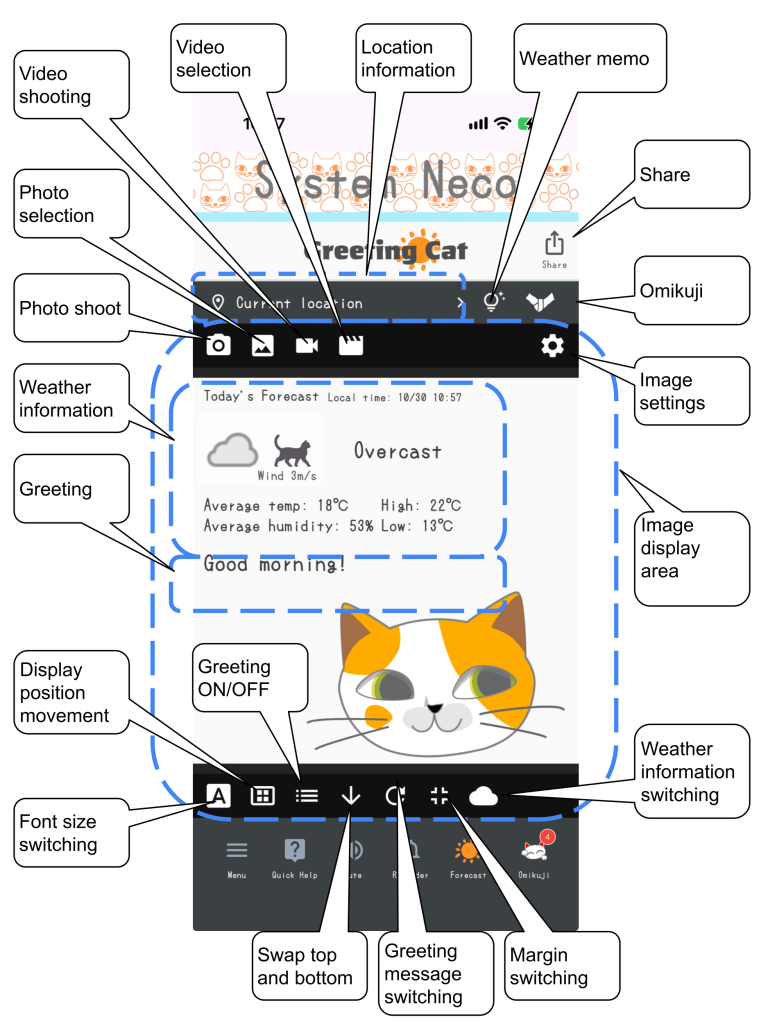
Home displays your image, weather information, and a greeting. Tap the image to show or hide the controls along the top and bottom of the image area. Use the buttons at the bottom of the screen to open Menu, Quick Help, sound controls, Reminder, Forecast, and Omikuji.
Greetings
Greetings are chosen at random for the time of day. You may also see weather-related messages or your Omikuji’s Lucky Item or Lucky Cat. Tap the greeting itself or the  refresh icon to switch to another greeting.
Weather information
Tap the weather icon or the  Switch Weather icon to cycle through Today’s Forecast → Current Weather → Tomorrow’s Forecast. Choose the location shown on Home using the tabs in Forecast. Swiping left or right on the image changes the text layout; it does not switch the weather view.
Changing the layout
Use the  or
 up/down controls, or swipe up or down on the image, to change the vertical arrangement of the greeting and weather information. Swipe left or right, or use the text layout control, to change the horizontal arrangement. A single tap on the image shows or hides the controls.
Use the font size control or double-tap the image to cycle through three text sizes. The controls also let you show or hide the greeting and change the margins around the text.
Images
The default cat illustration changes with the displayed weather. You can also save your own photos or videos for display.
Open Edit images using the Image settings gear icon in the image controls. Same image uses one image regardless of the weather. By weather uses the image saved for the current weather conditions.
Choose an image slot
In Edit images, choose Always, Clear, Rain, Cloudy, Snow, or Other before importing a photo or video. Media imported directly using the capture or selection controls on Home is saved in Always and displayed using Same image.
If a slot has no saved image in By weather mode, the default cat illustration is shown. Tap a saved image to adjust its crop position and zoom again. Use the delete icon to remove a saved image. This does not delete the original in your device’s photo library.
(1) Take a photo
Tap  to take a photo. In the crop editor, choose square (1:1), portrait (3:4), or landscape (4:3). Drag to position the crop, then pinch or use the slider to zoom. Confirm to save it.
(2) Choose a photo
Use  to choose a photo from your device’s photo library. As with a photo you take, you can choose square (1:1), portrait (3:4), or landscape (4:3), and adjust the crop position and zoom.
(3) Record a video
Use  to record a video. After recording, adjust the shape, crop position, zoom, and length used from the start of the video. The preview is silent.
a) Video format
Videos are shared in MP4 (MPEG-4) format.
b) Aspect ratio
Choose square (1:1), portrait (9:16), or landscape (16:9), and adjust the crop position and zoom.
c) Length
Set the length used from the beginning of the video in 1-second steps, up to 32 seconds, within the original video’s length. Use the slider or numeric input. This does not let you select a starting point partway through the video.
(4) Choose a video
Use  to choose a video on your device. Then adjust the crop position, zoom, and length to use. The file selection screen may differ by device or operating system. Long videos or large files may take time to load.
a) Video format
Videos are shared in MP4 (MPEG-4) format. There is no GIF conversion or export control.
b) Aspect ratio
Choose square (1:1), portrait (9:16), or landscape (16:9), and adjust the crop position and zoom.
c) Length
Set the length used from the beginning of the video in 1-second steps, up to 32 seconds, within the original video’s length. Use the slider or numeric input.
Import from another app
In another app displaying a photo or video, open Share and choose Greeting Cat as the destination. Review the content in the crop editor and confirm to save it. Some source apps or file formats may not support importing.
Sharing
Use the  share icon at the top right of Home to send an image or video with a greeting and weather information to social media, messaging apps, or other destinations. Still images use PNG format, and videos use MP4 format. Supported formats and handling of accompanying text differ by destination.
Enter or change the accompanying text in Menu → Settings at the bottom of the screen. Clear the checkbox for accompanying text if you do not want to include it. Some destinations cannot receive media and text together, so review the content before sending.
An image or video may include a location name or a photo of someone. Check what you are sharing and who can see it before posting or sending.
Forecast
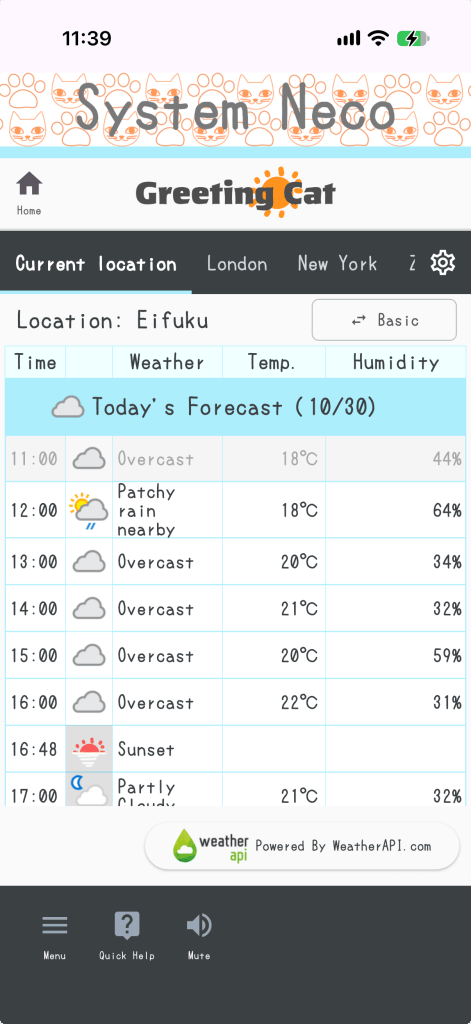
Tap  Forecast at the bottom of the screen, or tap the location name on Home, to open Forecast. View hourly forecasts from the current hour through tomorrow in the selected location’s local time.
Switch the displayed metrics
Tap the metric-switch icon in Forecast to cycle through these four views.
- Basic: Temperature and humidity.
- Rain/Snow: Rain and snow probabilities, precipitation, and snowfall amounts.
- Wind: Wind speed and direction.
- Feels/UV: Feels-like temperature and UV index.
Unavailable values may be shown as “—”. Forecasts come from an external service and may differ from actual weather or other services depending on the connection and update time.
Switch between your current location and saved places
Use the tabs at the top of the screen to choose Current location or a saved place. The weather for the selected place also appears on Home. To view weather for your current location, enable location services on your device and allow Greeting Cat to access your location.
Add, edit, or delete places
- Open the location settings gear icon in Forecast.
- Tap the add (+) button and enter a name and location. You can also use Choose on map.
- Specify latitude and longitude, a full Plus Code, or a short Plus Code with a city or address. Examples:
35.681236,139.767125/8Q7XMPM5+32/PQM5+32 Funabashi. The saved-location field does not accept a city name alone. - Confirm to save. You can save up to 10 locations. Use the edit and delete icons in the list to change or remove a saved place.
On the map, check the position at the center and choose Use this location. The button for moving to your current location requires location permission. Use the Home icon at the top left of Forecast to return to Home.
Omikuji
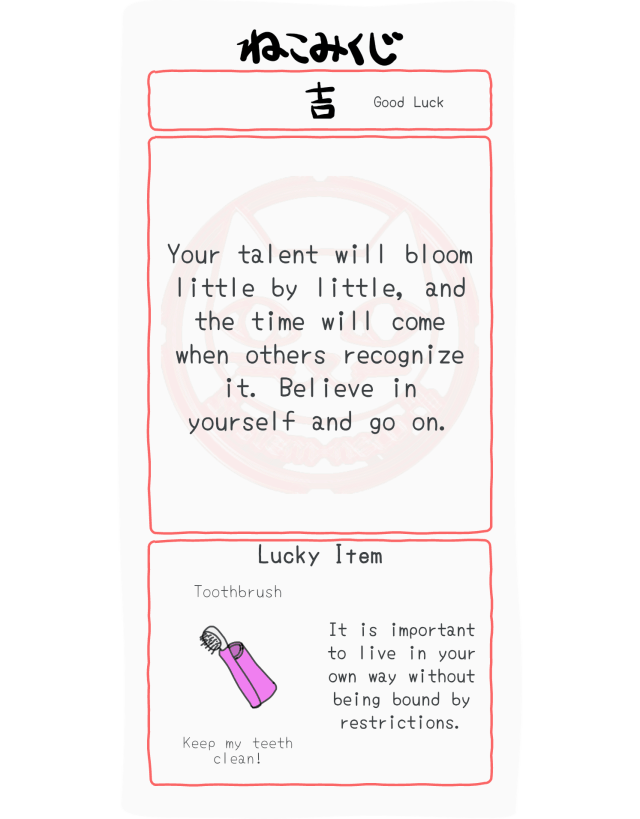
Open Omikuji using  at the bottom of the screen. Tap a saury or the plate to make an offering, then tap the box to draw a fortune slip. You can also draw one using the small Omikuji icon beside the location name on Home. A dimmed icon means you cannot draw one at that time.
Each draw uses one saury. You start with three, then receive one day’s worth of saury for each day that passes.
You can keep up to five saury, including any you already have. You do not receive five additional saury every day without using them.
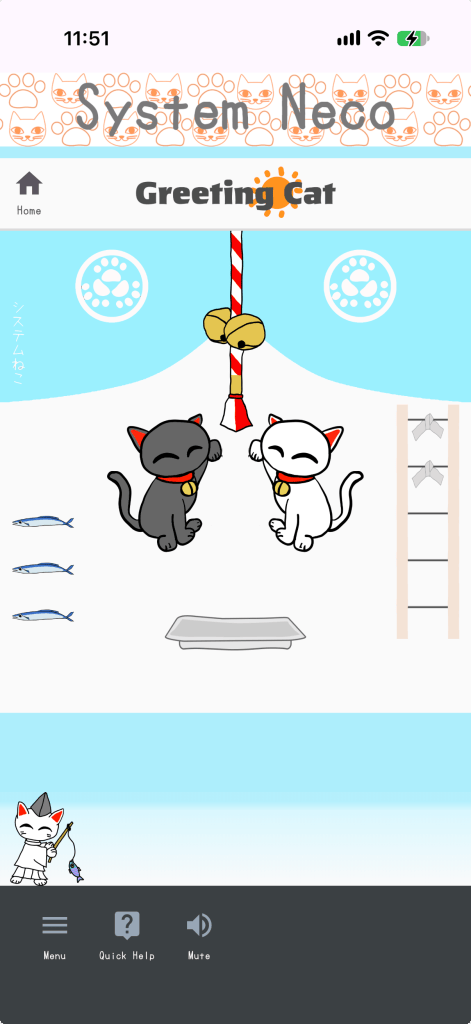
You can draw up to five Omikuji per day. Tap a Guardian Cat on either side for a chance to receive one saury by watching an ad. This depends on conditions such as your remaining draws for the day and ad availability. If you reach the daily limit, wait until the next day.
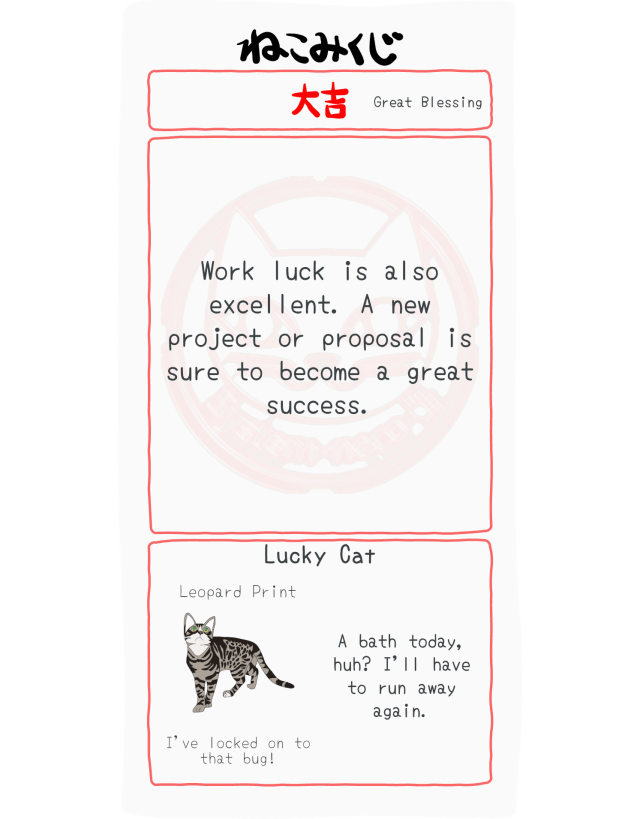
Tap the fortune text or Lucky Item explanation to play its audio. Use  to turn app sound on or off. Tap a tied fortune slip to view it again; that day’s results are cleared the next day. Your Lucky Item or Lucky Cat also appears on Home.
Weather memo
Open Weather memo using the lightbulb icon beside the location name on Home. Enjoy weather-related notes and messages in text and audio. The content varies according to conditions such as the weather at the time.
When sound is on, tap Listen again to play the audio. Tap Stop during playback to stop it. If sound is off, turn it on using the sound button at the bottom of the screen.
In Menu → Settings → Weather memo settings → Automatic display, choose None, Once a day, or Up to twice a day. This controls automatic display while you use the app. It is separate from reminders scheduled for a particular time.
Reminder
- Tap the bell-shaped Reminder button at the bottom of Home.
- Turn on scheduled notifications and choose the notification days and time.
- Confirm your settings. If your device asks for notification permission, allow it.
Notifications are scheduled using your device’s local time. Turn off the reminder setting when you no longer need it. If notifications do not arrive, check notification permission and power-saving settings on your device. Notifications may be delayed or missed depending on the operating system and device state.
Menu and language settings
Use Menu at the bottom of the screen to open Settings, Language settings, Help, Terms of Service, Privacy Policy, the website, and other options.
- Settings: Change the accompanying sharing text and automatic display of Weather memos.
- Language settings: Choose Japanese (日本語) or English. App text, greetings, Quick Help, and other content switch to the selected language. On first use, the app uses your device’s language; languages other than Japanese use English.
- Privacy Settings: Depending on your region and advertising consent status, this option lets you review or change your advertising choices.
Troubleshooting
Weather cannot be retrieved
Check your internet connection. If Current location is selected, check your device’s location services and permission for this app. For a saved place, check its location information. A temporary weather-service outage may also prevent retrieval.
Photos or videos cannot be imported or shared
Check camera and photo-library permissions, available storage, and the file’s format and size. Video processing can take time. Also check whether the destination accepts PNG images or MP4 videos.
No sound
Check that app sound is on, and check your device volume and audio output destination. Photo and video editing previews are silent.
Settings or saved images have disappeared
Saved images and settings are stored mainly on your device. They may be lost when the app is deleted or in other circumstances. Keep the originals of important photos and videos separately.
If the issue persists, contact info@systemneco.com with your device model, OS version, app version, and the steps you took.
Last updated: October 30, 2026

