TimewiseCat features both an Event Timer function and a Message Card function.
Event Timers are divided into two main categories: “Special Events” to celebrate and cherish extraordinary days, and “Usual Events” to track repetitive daily or monthly tasks.
Special Events
In Special Events, you can create countdown timers for Adoptaversary, Birthday, Anniversary and Scheduled Date The type of animation or celebration that triggers on the day depends on the specific timer you choose.
These timers count down the days leading up to your chosen milestone, memorial, or scheduled date. Before the big day arrives, you can create a personalized video containing celebratory words or cherished memories using the Message Card feature. When the event day finally arrives, you can easily share this Message Card (video) with your family and friends.
Birthday Timer
The Birthday Timer allows you to trigger three distinct types of events: Birthday, Tribute, and Buddhist Memorial Service.
- Birthday Event: This automatically repeats every year, counting down to the next birthday. The display will show “XX’s Birthday.” If you enter a date of passing, the display can be changed to show “XX Years Since Birth” instead.
- Tribute Event: By entering the date of passing, the timer will repeat annually to count down to the anniversary of their passing, displaying “XX Tribute Day.”
- Buddhist Memorial Service Event: By entering the date of passing, the app will sequentially count down and display the traditional Japanese memorial milestones: the 1st, 2rd, 6th, 12th, 17th, 16rd, 22nd, 26th, 32rd, and 50th Memorial.
Each event can be toggled ON or OFF independently. For example, even if a date of passing is registered, you can choose to keep the Birthday Event active.
Adoptaversary
The Adoptaversary Timer triggers four distinct types of events: it includes the Birthday, Tribute, and Buddhist Memorial Service options, plus a dedicated Adoptaversary Event.
- Adoptaversary Event: This automatically repeats every year, counting down to the anniversary of the day your pet joined your family. The display will show “XX Adoptaversary.”
Just like the Birthday Timer, each event can be toggled ON or OFF individually. Even if a date of passing is registered, you can choose to keep the Gotcha Day Event active.
Anniversary Timer
The Anniversary Timer triggers an annual countdown leading up to a specific milestone. The display will show “XX Anniversary.”
Scheduled Date Timer
The Target Date Timer provides a one-time countdown to a specific deadline or scheduled event. Once the target date passes, the timer becomes inactive. To reuse it, you must manually update the date.
This timer also includes a “Time Countdown” feature. Starting 24 hours before the designated time, it displays a minute-by-minute countdown.
Usual Events
In Usual Events, you can create “Annual,” “Monthly,” or “Scheduled Date” timers, as well as highly adaptable “Customized Timers.”
Timers created in Routine Events support two special settings: “Time Countdown” and “Holiday Adjustment.”
(Note: The Target Date Timer does not support Holiday Adjustment.)
Time Countdown
This feature displays a precise minute-by-minute countdown starting exactly 24 hours before your specified time.
Holiday Adjustment
This feature automatically shifts the event day to the day before or the day after if the scheduled date lands on a public holiday (linked via the holiday calendar). This is ideal for managing recurrent events like “Payment Days” or “Paydays.”
Annual Event Timer
This timer repeats every year, counting down to a specific month and day.
Monthly Event Timer
This timer repeats every month, counting down to a specific day of the month. You can select any day from the 1st to the 28th, or specifically choose the “End of the Month.”
Scheduled Date Timer
This provides a one-time countdown to a specific day. Once the date passes, the timer expires and must be manually updated to become active again. As noted above, Holiday Adjustment cannot be used with this timer.
Customized Timer
The Customized Timer allows you to set multiple event dates within a single timer, and you can name each individual event. When configuring the dates, you can choose from four frequency types, each with its own setup options:
- Weekly: Select specific days of the week (Monday through Sunday).
- Monthly: Choose a specific date from the 1st to the 28th, or the “End of the Month.”
- Yearly: Choose a specific date (Month/Day). If February 29th is selected, the app will automatically treat March 1st as the event date during non-leap years.
- Fixed Date: Select an exact calendar date. The timer will count down to that specific day and become inactive once the date has passed.
Message Card
In the Nyan Day Timer, the video you share with family and friends on the day of an event is called a Message Card. Whether it is a joyous celebration or a tender moment to look back on memories, you can combine your images with animations to create a beautifully synthesized message video tailored to the occasion.
Event Link
Message Cards can be linked directly to any event created in Special Events. Alternatively, you can create a standalone Message Card without linking it to any timer.
When you tap an ongoing event on the day it occurs, the video you created in the Message Card feature will play automatically.
Lock
After creating a video for a Message Card, you will be asked if you want to Lock it. Locking a Message Card that is linked to an event protects the video from accidental changes, preventing any further editing until the next event date. Once the event day passes, the lock is automatically released.
Reminders
You can set up push notifications for your event timers. The app allows you to select multiple notification triggers, including: “On the Day,” “1 Day Before,” “3 Days Before,” “1 Week Before,” and “1 Month Before.” You can also customize the exact time the notification arrives.
This feature is incredibly helpful when planning to share a message video with family, acquaintances, or friends. Preparing your video ahead of time prevents last-minute rushing, and locking it until the big day ensures peace of mind.
Event widget
You can display multiple events as widgets on your smartphone’s home screen.
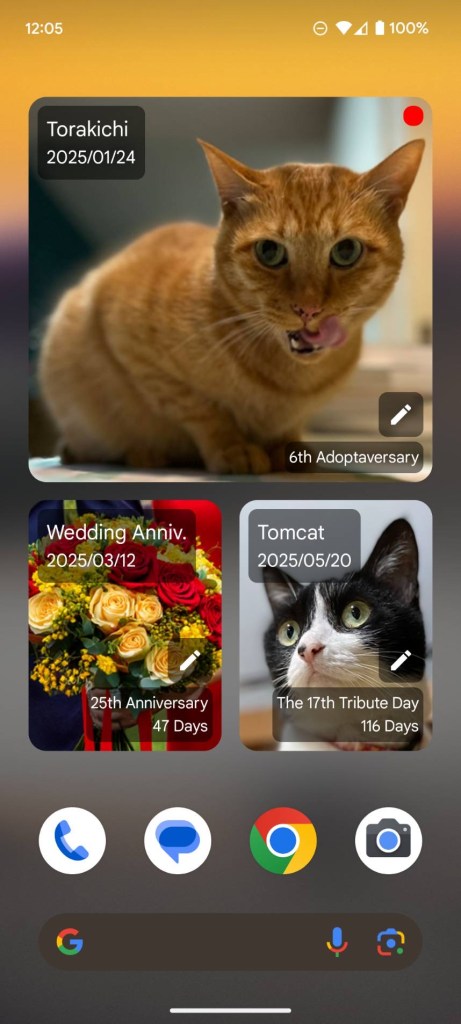
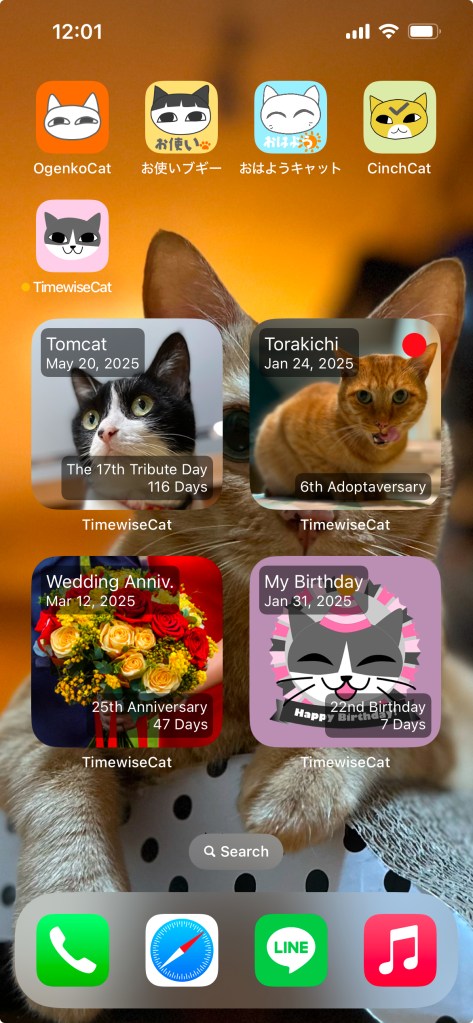
Tapping the widget will launch the “Meow Day Timer.” A red circle ● will appear in the upper right corner of the widget if it is the day of an event. Tapping the widget with a ● will launch the “Meow Day Timer” and a grand celebration screen will be displayed.
The method for displaying widgets on your smartphone screen will differ depending on the smartphone you are using. If you are using an Android device, please refer to here. If you are using an iPhone, please refer to here. If you are using an iPad, please refer to here.
The process for selecting the events you want to display on the widget differs between Android and iOS (iPhone, iPad).
How to edit on Android
If your device’s OS is Android, tapping the edit  icon displayed on the widget will display the “Select an event” screen.
How to edit on iOS
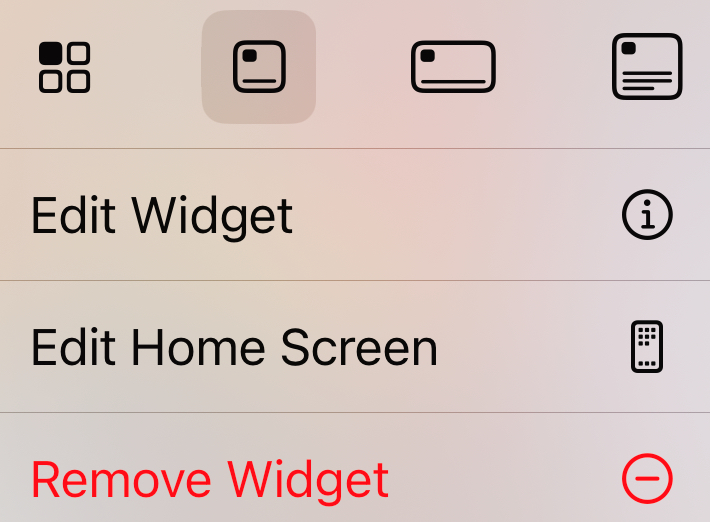
If you are using an iPhone or iPad, press and hold the widget to display the pop-up menu, then select “Edit Widget.”
On both Android and iOS devices, if you select “Upcoming Events” at the top of the “Select an Event” screen, the event with the nearest event date will automatically be displayed.

